Room Types
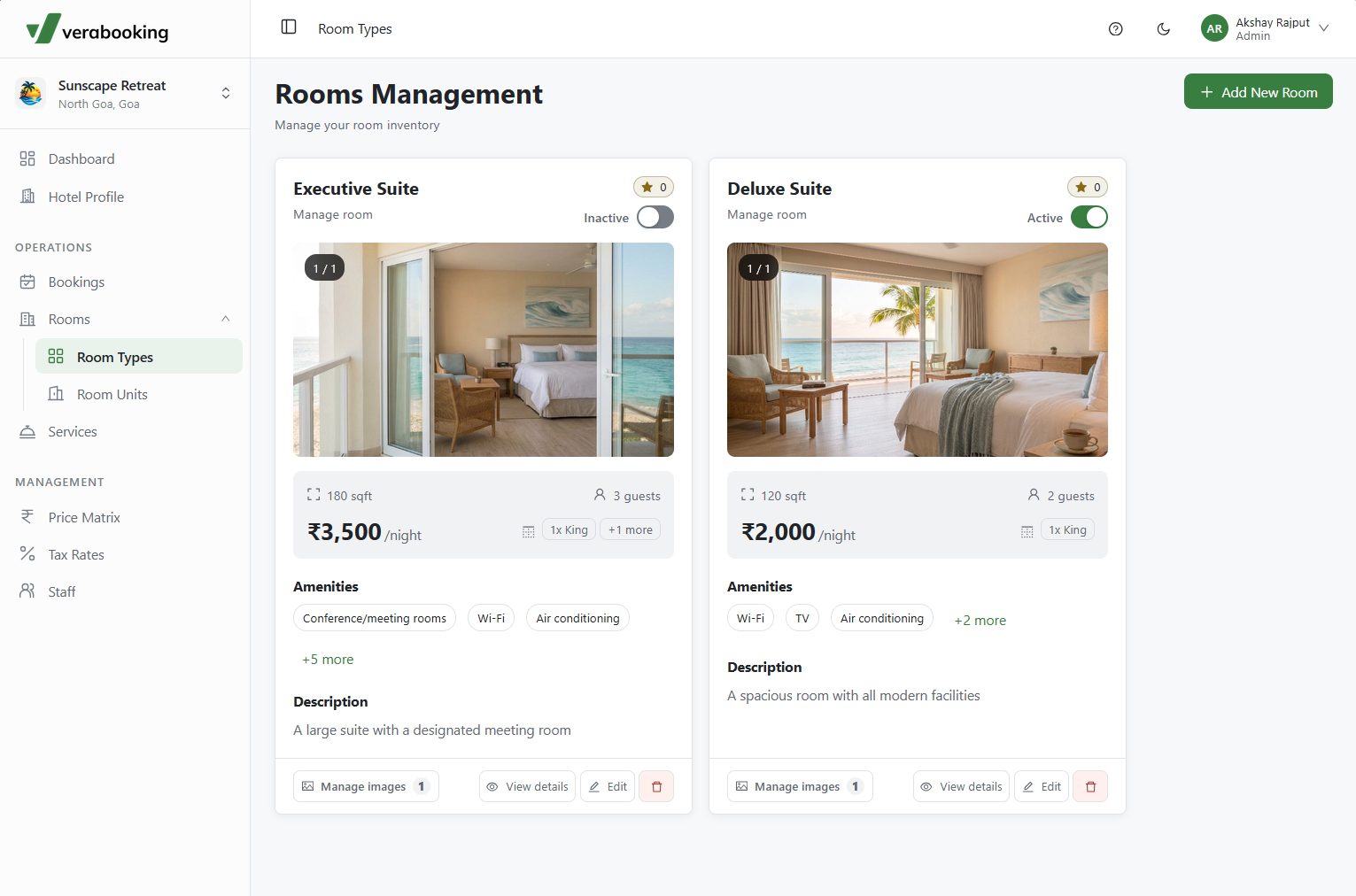
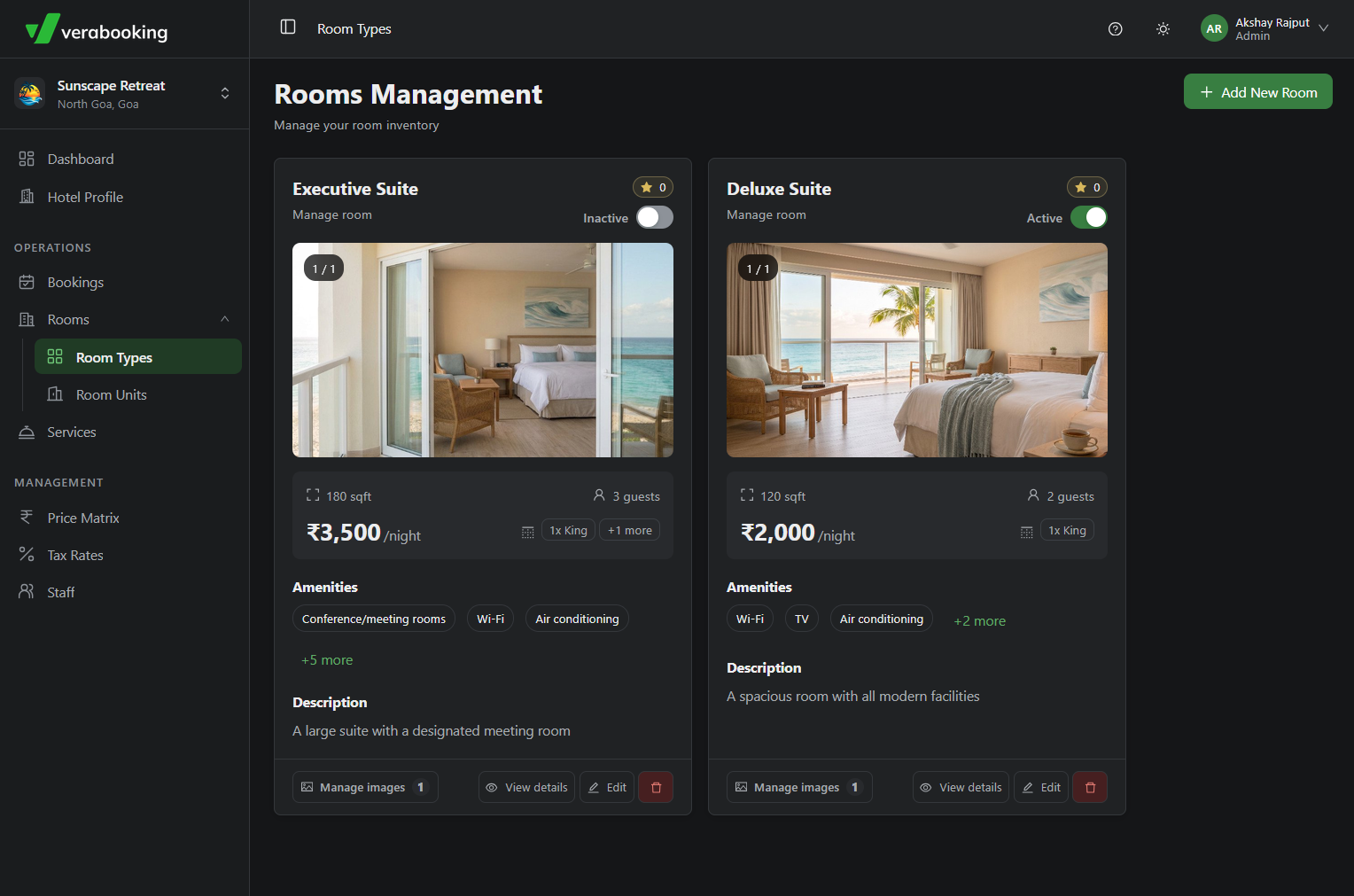
The Room Types page in the Verabooking Admin Portal lets you define and organize your hotel's physical inventory categories. Each room type appears as a card with an overview of the offering and access to management tools.
Adding a New Room Type
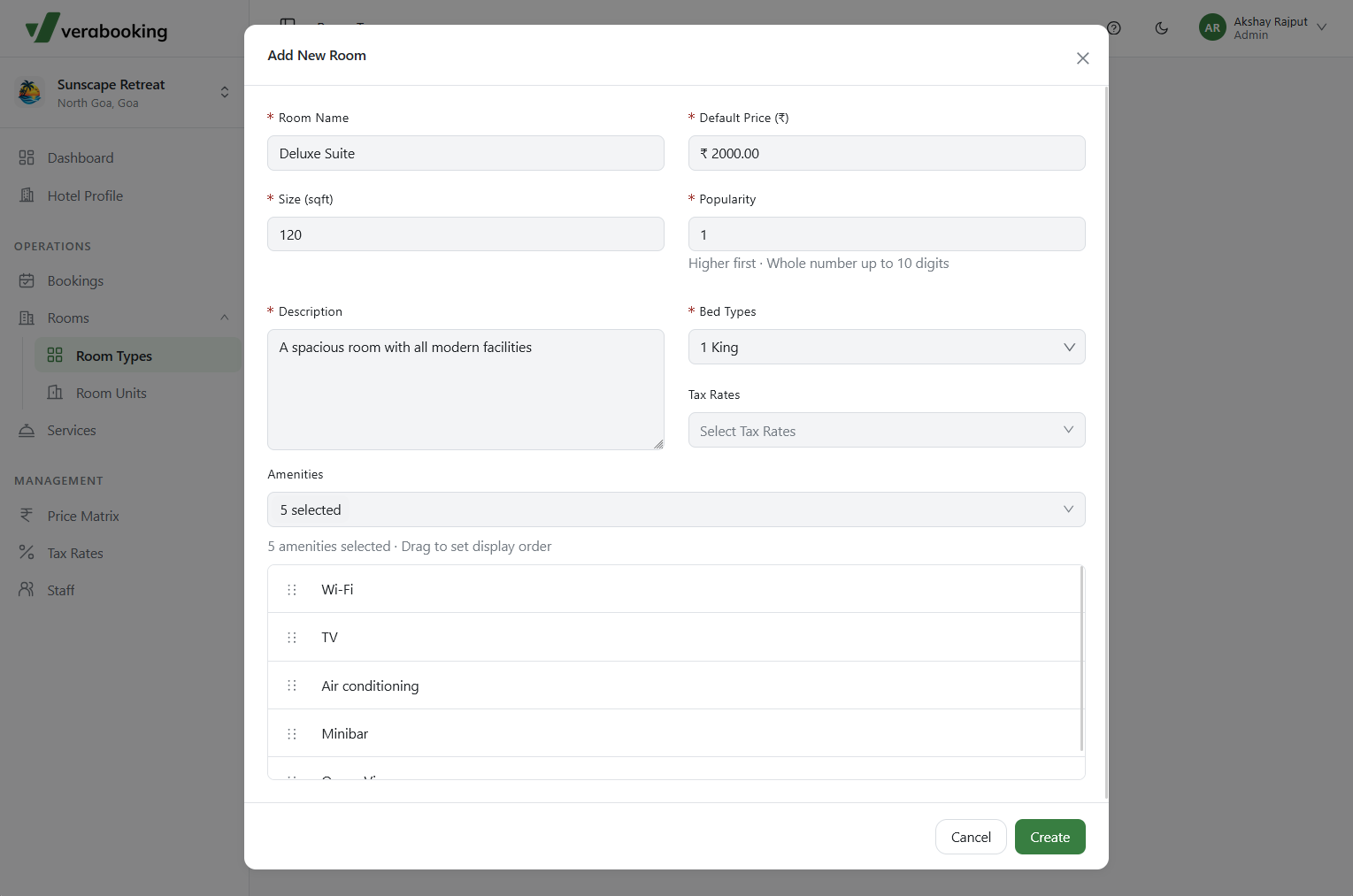
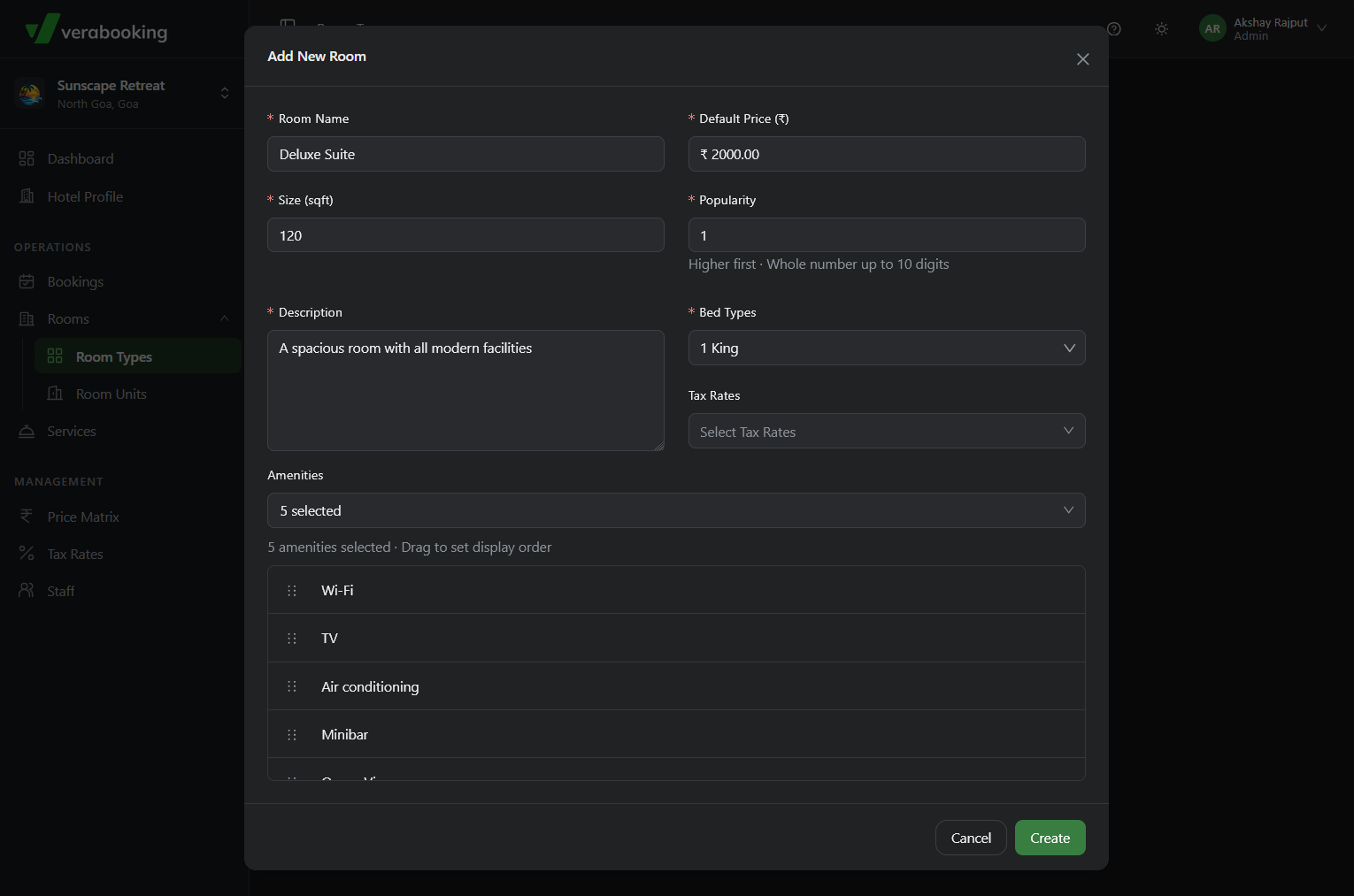
To create a new room category, click + Add New Room in the top-right corner. This opens a modal where you configure the room's details:
- Basic Information: Enter the Room Name, a Description, and the Room Size (sq ft).
- Pricing & Taxes: Set the Default Price (₹), which establishes the base rate, and select any applicable Tax Rates.
- Room Features: Specify Bed Types (such as single, twin, double, queen, or king) and assign Amenities from the multi-select dropdown.
Managing Existing Room Types
Once created, room types appear as cards on the main dashboard. Each card provides these actions:
- Activation Status: Newly added room types are inactive by default. Toggle Active on the card to make the room visible in the booking engine.
- Manage Images: Upload new photos or reuse existing images. A carousel on the card displays the active images to guests.
- View Details: Open a summary of the room's configuration, including status, capacity, base price, and amenities.
- Edit & Delete: Modify room details or permanently remove a room type from your inventory.
Important Considerations
- Inventory Limits: By default, each hotel can configure a maximum of 50 room types. Contact Qunnovera support if your property needs more capacity.
- Pricing Synchronization: The default room price is automatically synced to the Price Matrix for dynamic rate management.