Room Units
The Room Units page is your hub for managing individual physical rooms within your property. Before using it, configure at least one Room Type to categorize your inventory.
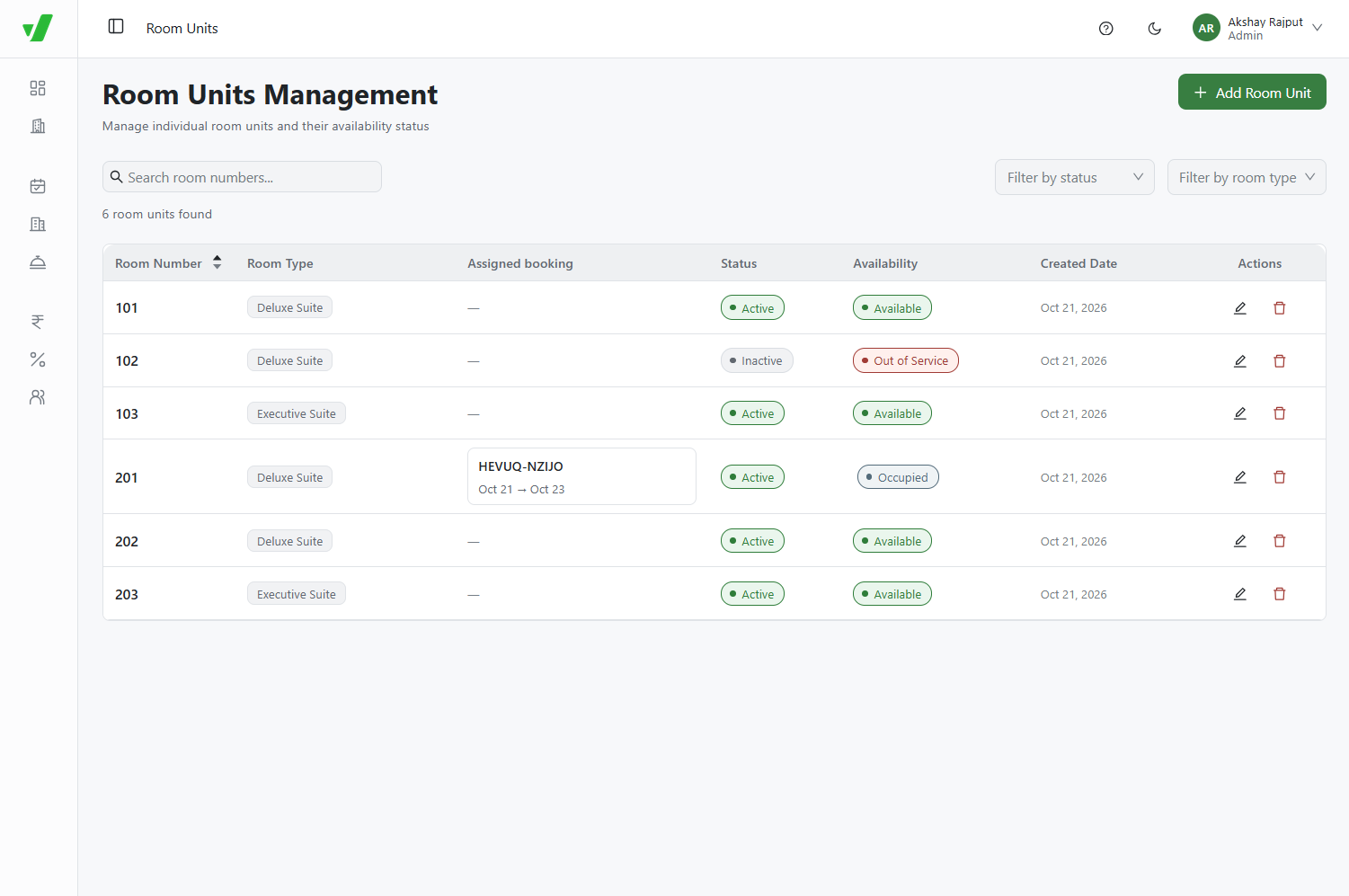
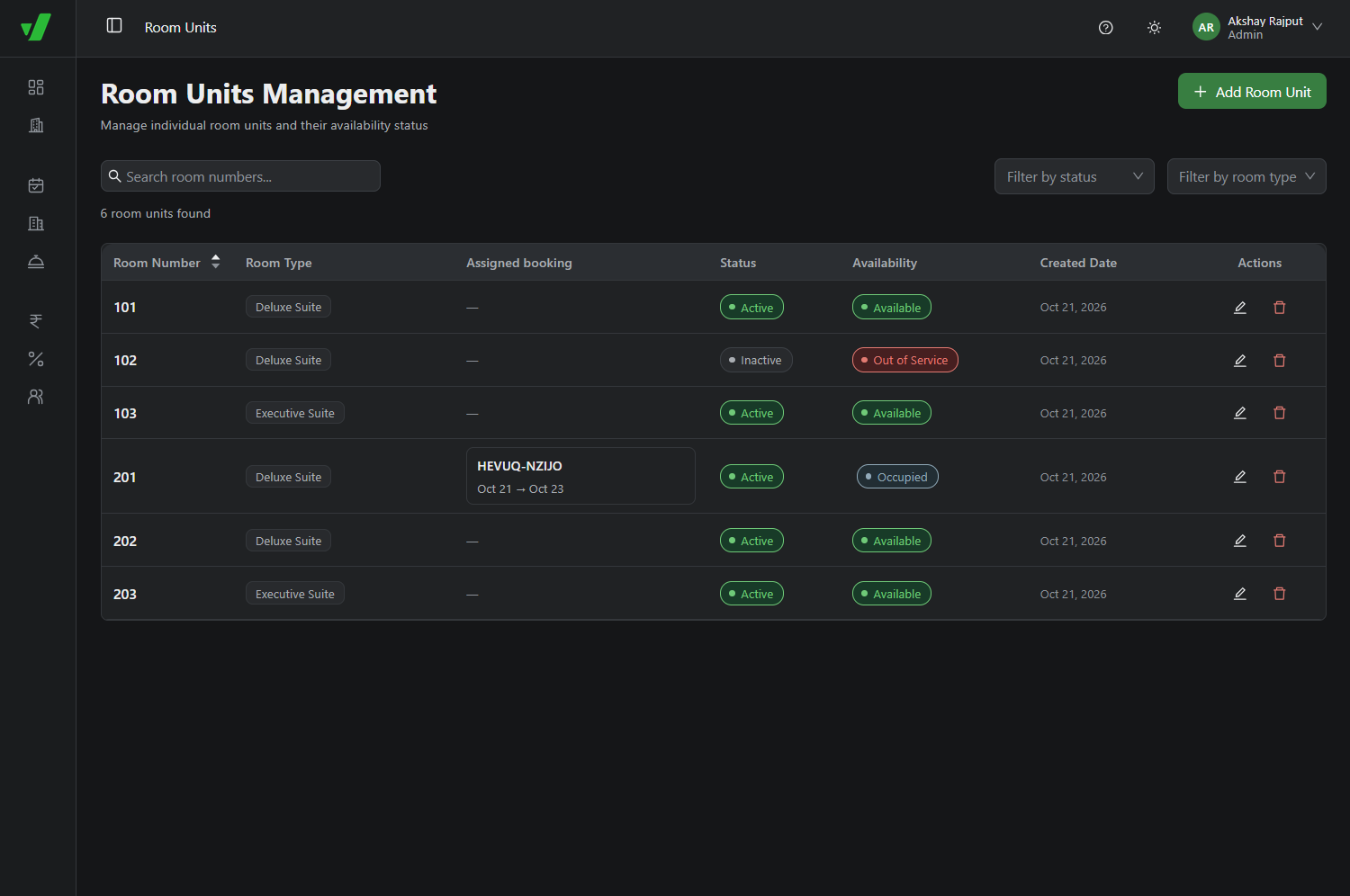
Adding New Room Units
To populate your hotel's physical inventory, click + Add Room Unit at the top-right of the dashboard.
- Select the appropriate Room Type from the dropdown menu (for example, Deluxe Room or Executive Room).
- Click the Room Numbers field and type the designated number.
- To add multiple room units at once, type a number and press Enter to create a chip for each unit.
- Click Create Room Units to save the new inventory.
Managing Existing Inventory
The main dashboard lists all configured room units. You can:
- Search & Filter: Find units with the search bar, or filter by availability status or room type.
- Edit: Use the pencil icon to change a room's category, general status, or current availability.
- Delete: Use the trash can icon to permanently remove a unit from inventory.
Status and Availability Lifecycle
Each room unit uses two types of tracking to keep the front desk synchronized with housekeeping operations.
| Identifier | State | Description & Automations |
|---|---|---|
| Status | Active / Inactive | Controls whether the room is officially commissioned for use in the hotel. |
| Availability | Available | The room is vacant, clean, and ready for an incoming guest. |
| Availability | Occupied | Triggered automatically when a booking is checked in. |
| Availability | Out of Service | Triggered automatically upon checkout; the room remains here until housekeeping cleans it and staff manually reactivates it. |