Payment Gateway Integration
Payment Gateway Configuration (Razorpay Integration)
Verabooking has streamlined the process for hoteliers to integrate their Razorpay payment gateway, empowering you to process online bookings seamlessly.
Setting Up Your Payment Gateway
To connect your Razorpay account to your booking engine, follow these steps:
-
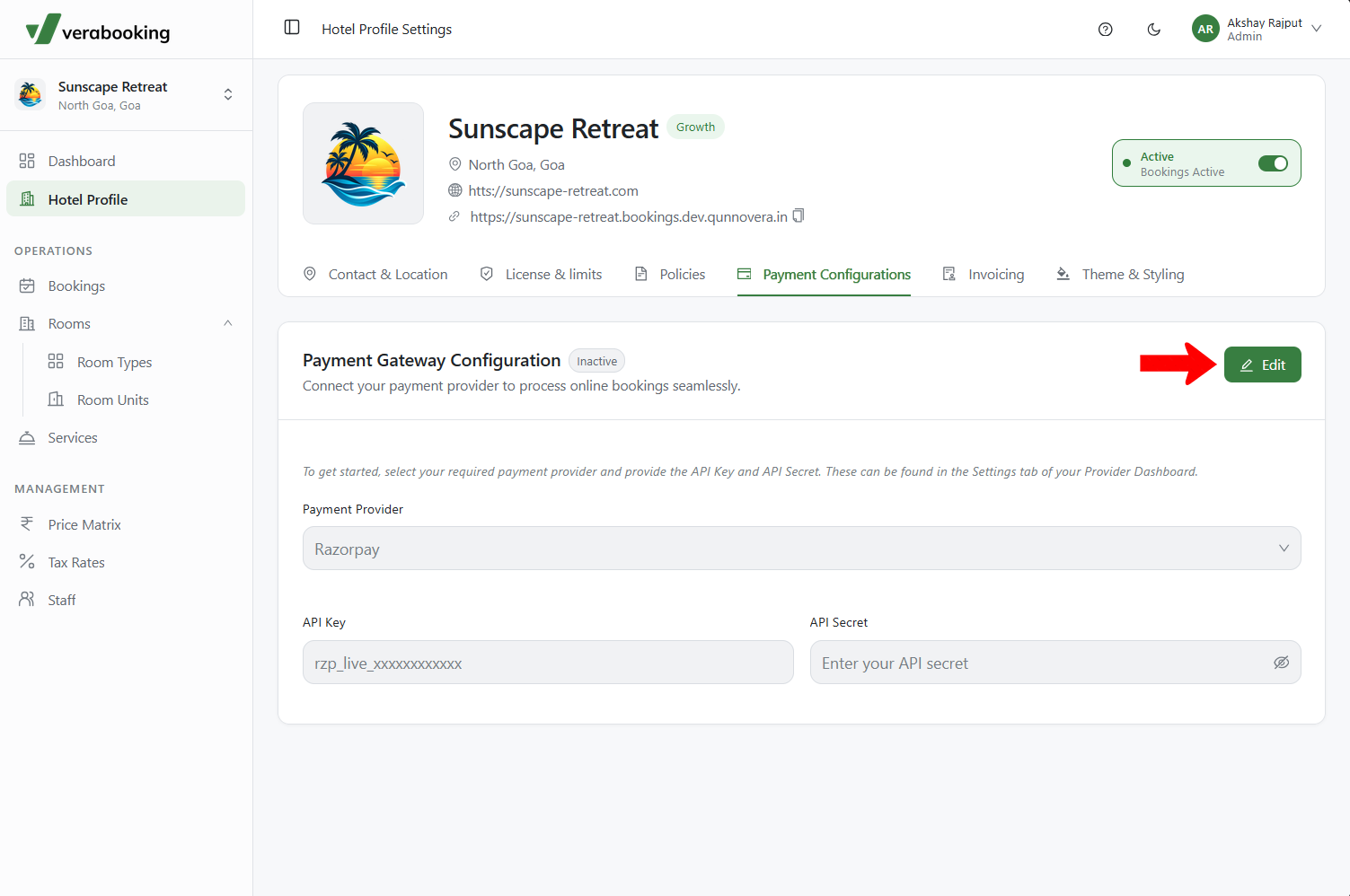
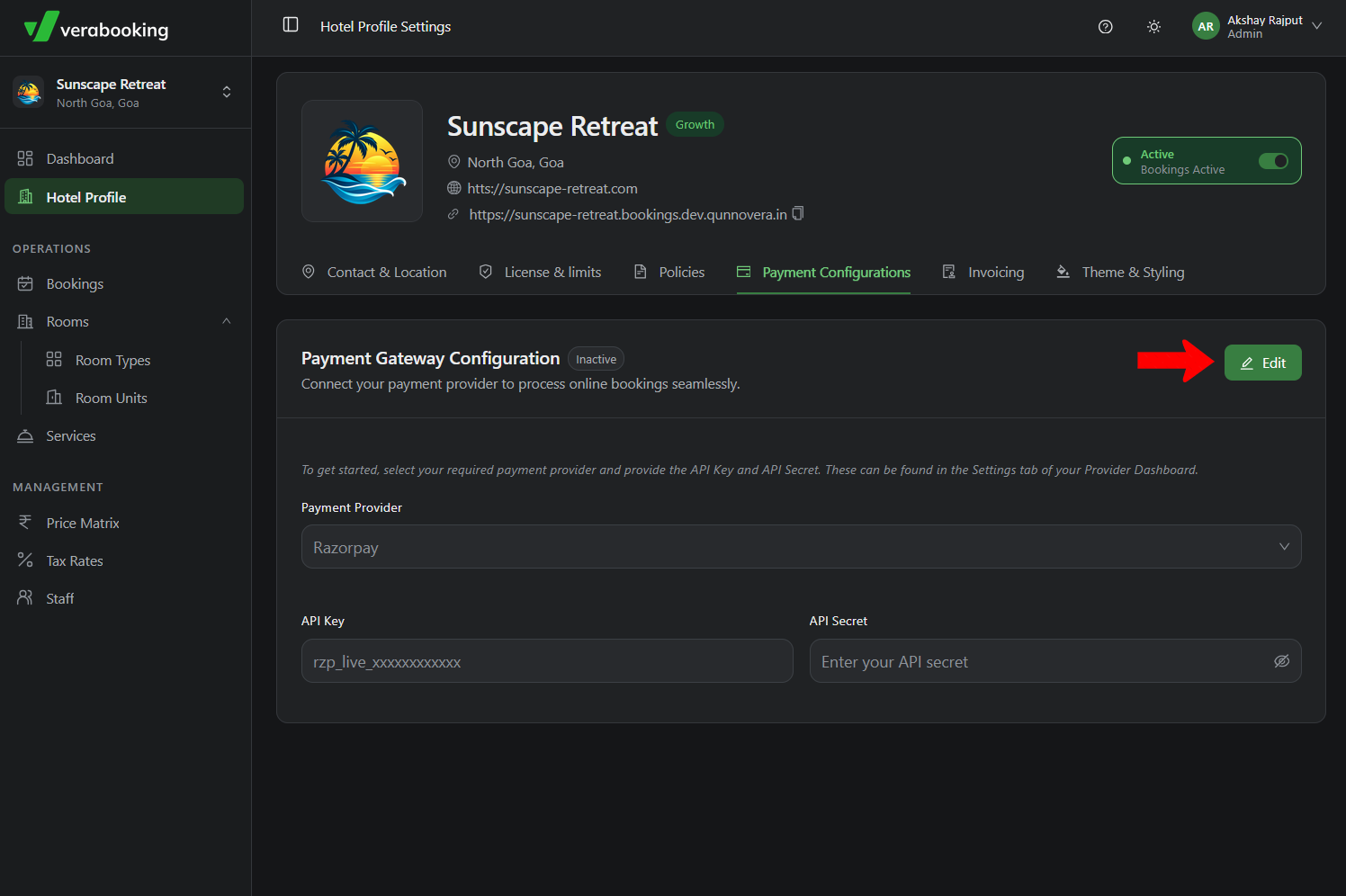
Navigate to your Hotel Profile Settings and click on the Payment Configurations tab.
-
Click the Edit button located on the right side of the Payment Gateway Configuration panel, as illustrated below.
-
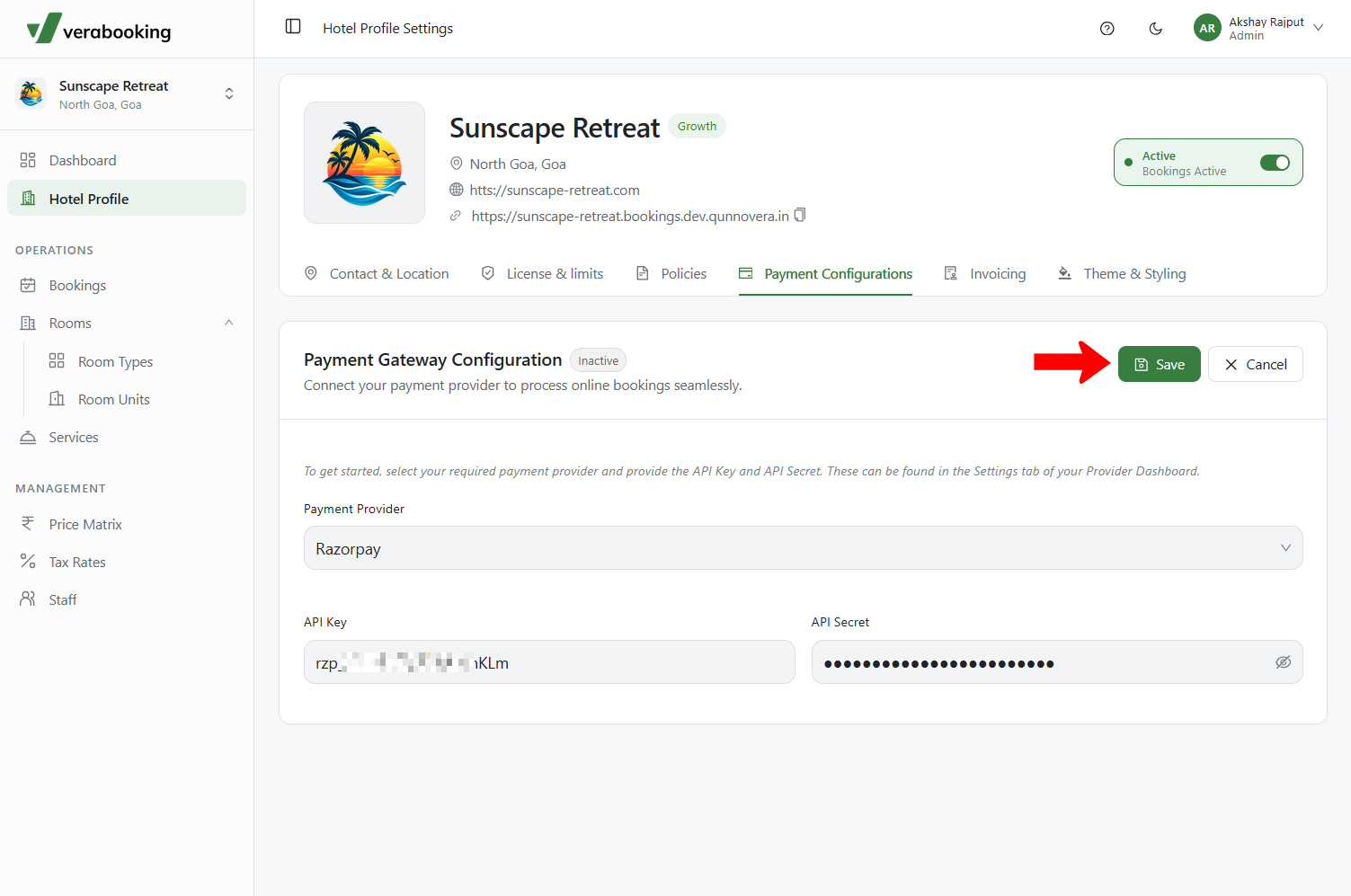
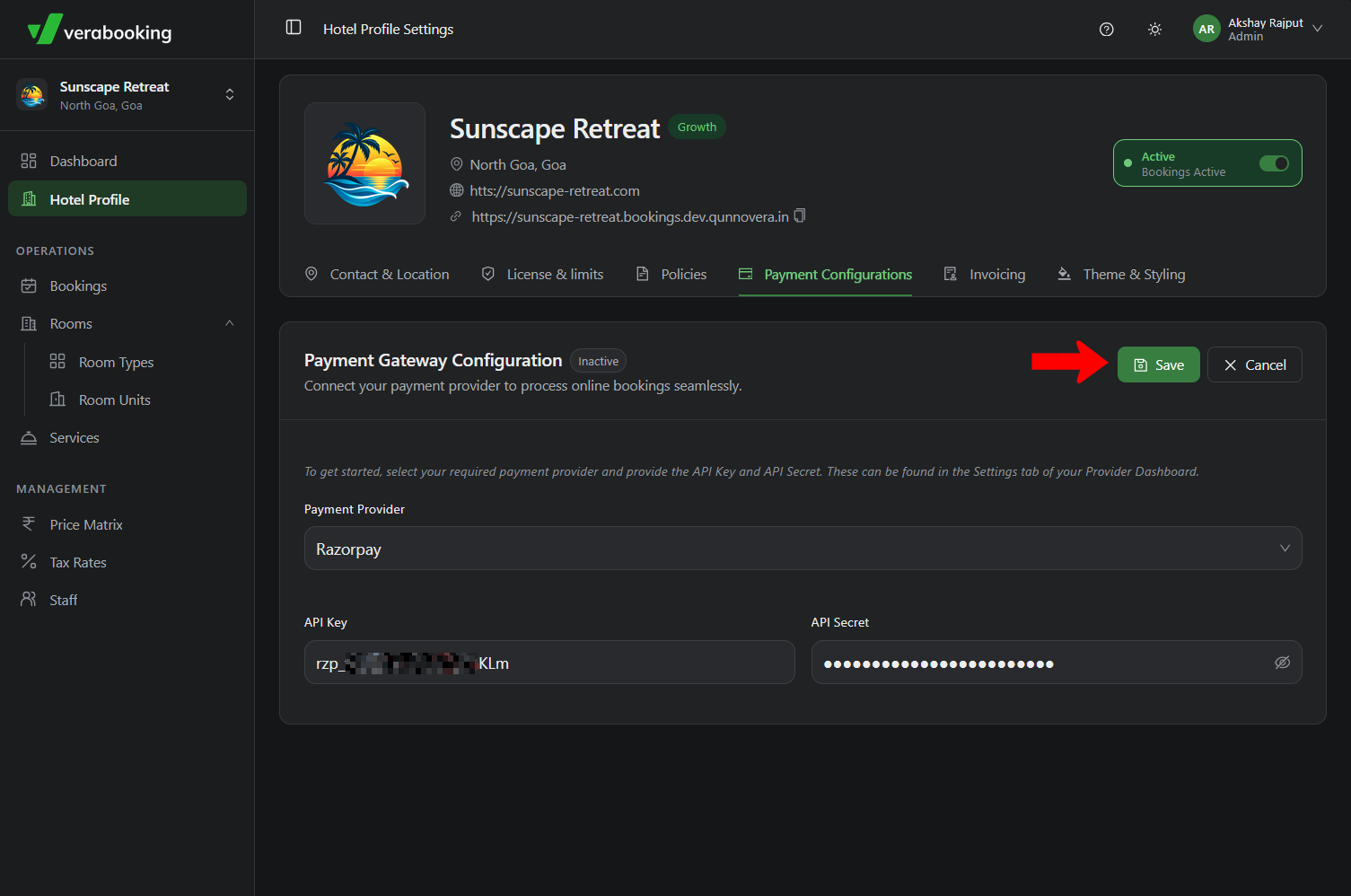
Ensure that Razorpay is selected from the Payment Provider dropdown menu.
-
Input your API Key and API Secret (Token) into the corresponding fields. You can generate and retrieve these credentials using the Razorpay API keys guide.
-
Click Save to lock in your credentials and finalize the connection, as shown below.
Once successfully configured, the panel will display a green Active badge next to the Payment Gateway Configuration header, confirming that your live connection is ready to accept guest transactions.
Additional Support
If you need guidance on creating a new Razorpay account or navigating their dashboard, refer to the official Razorpay Documentation. Should you experience any issues directly within the Verabooking portal during setup, or need help setting up your Razorpay account for your hotel, contact support@qunnovera.com.