Setup Your First Hotel
1. Create a New Hotel
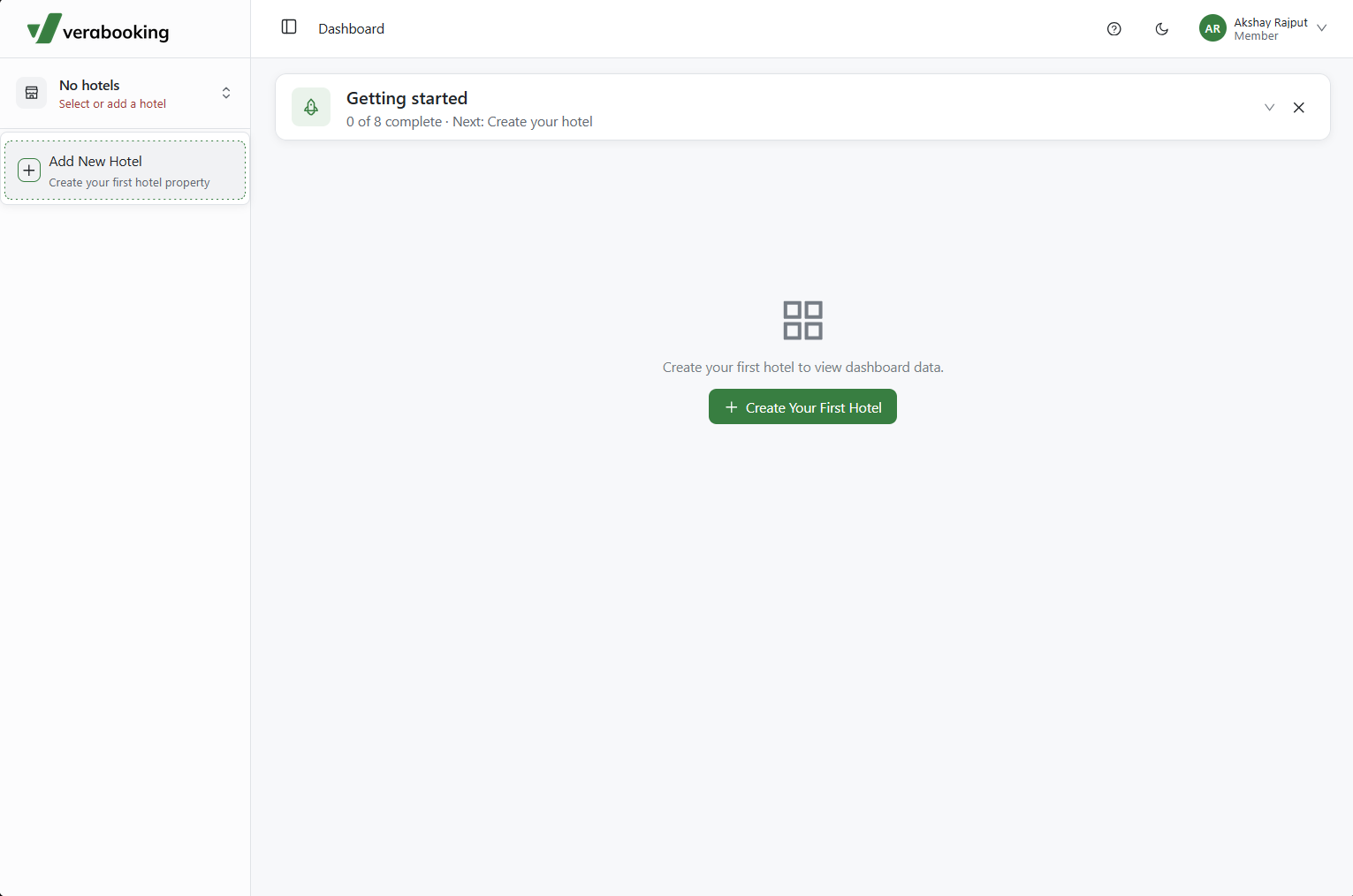
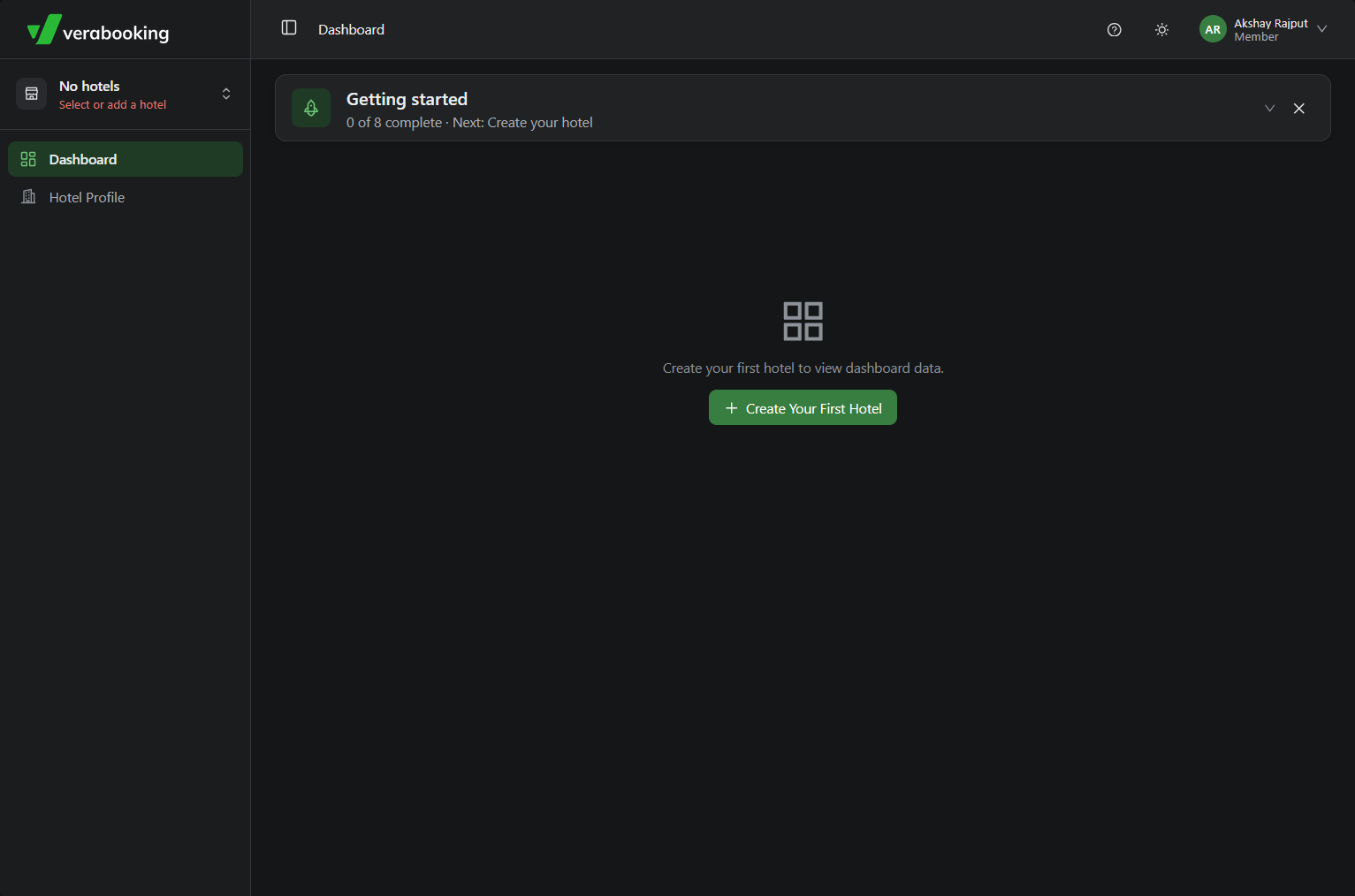
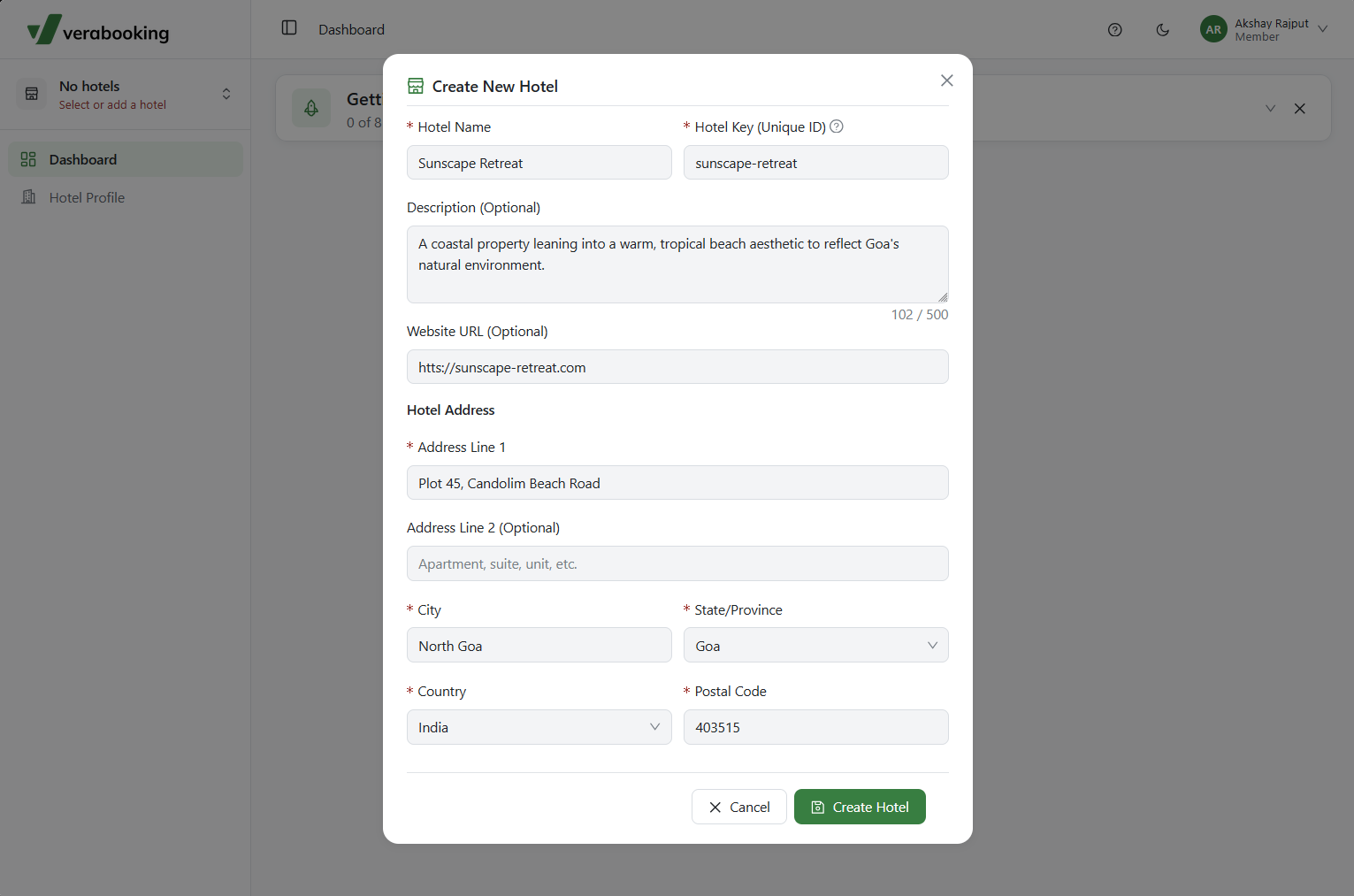
Navigate to the top-left corner of the dashboard, click the Hotel Selection dropdown menu, and select Add New Hotel.
2. Configure Hotel Details
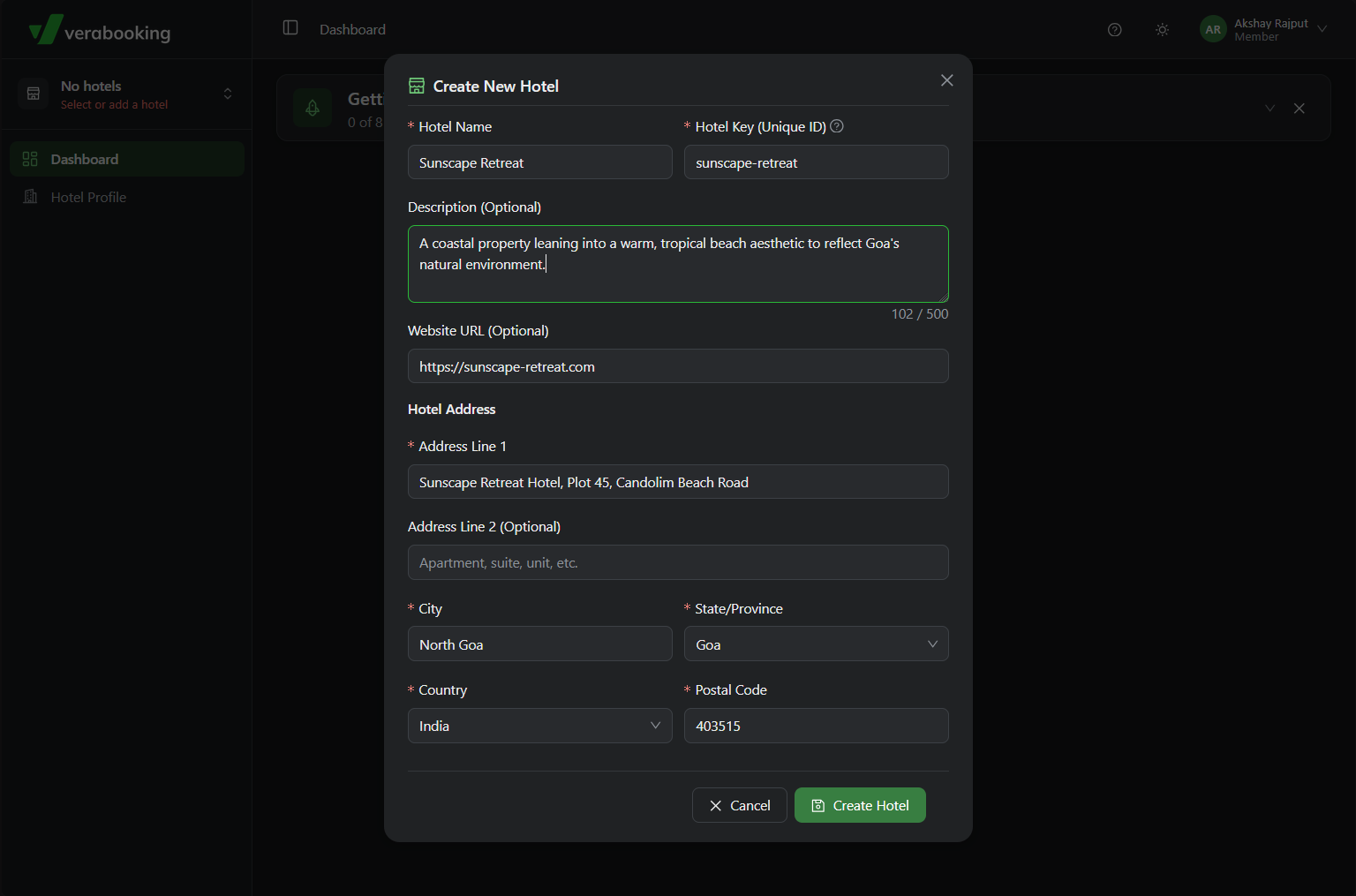
In the Add Hotel modal, input your hotel's general details and assign a unique Hotel Key. This key determines the customized URL where your hotel's booking engine will be hosted (e.g., <hotel-key>.verabooking.com).
3. Upload Your Logo
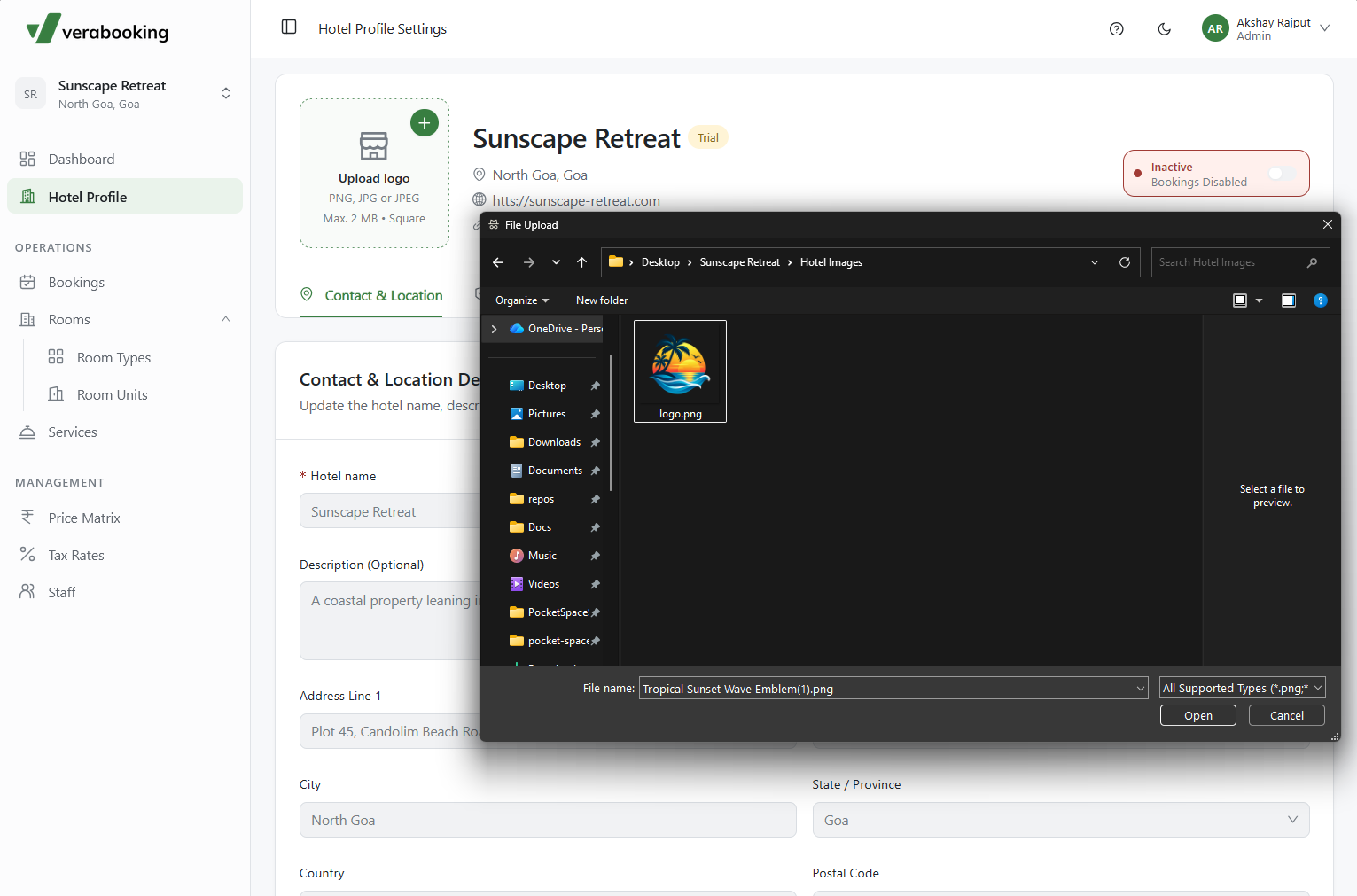
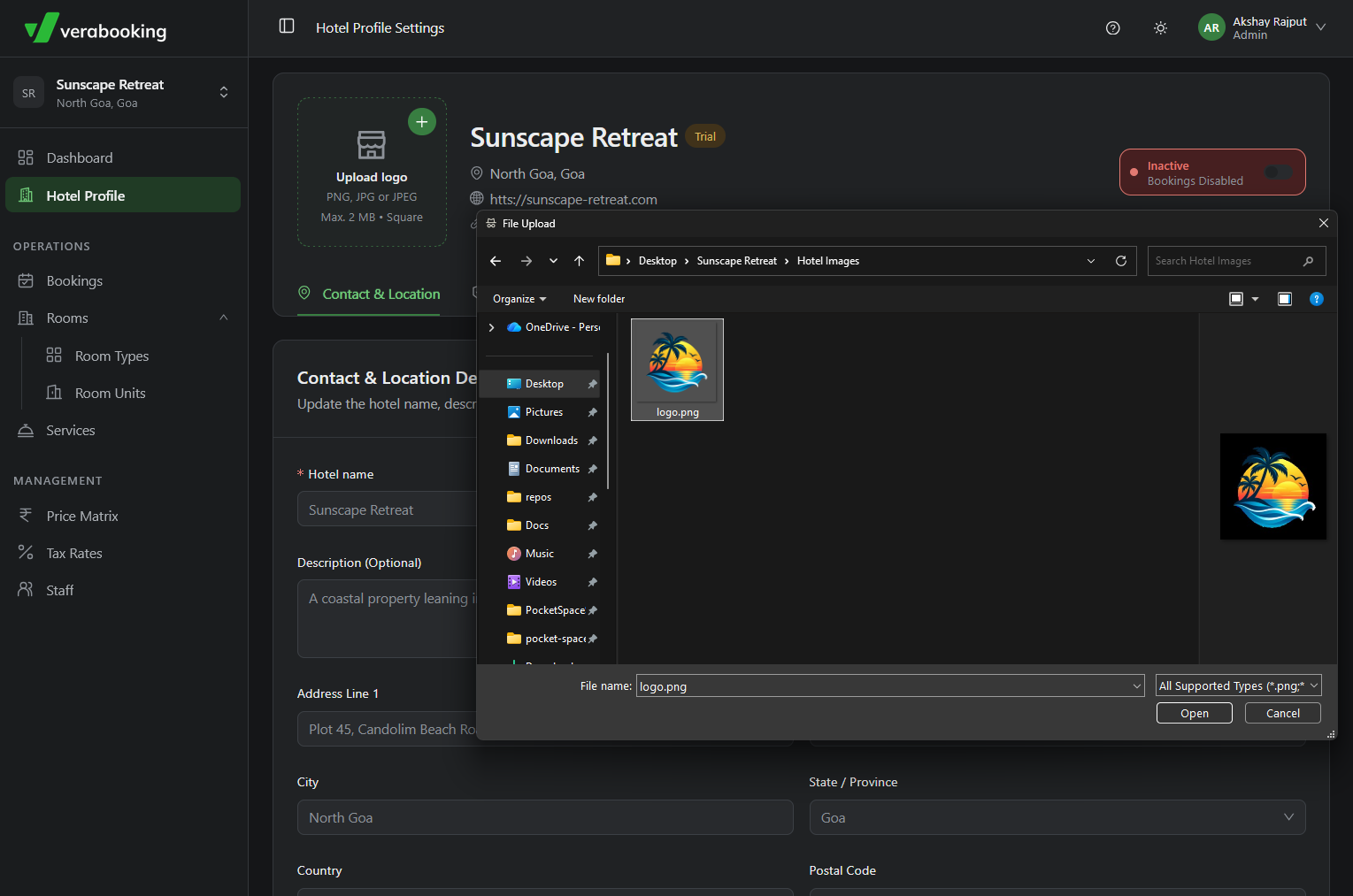
Once your hotel is created, navigate to the Hotel Profile tab to upload your hotel's official logo.
4. Configure Payment Gateway
Let's proceed with setting up your payment configuration. Refer to Payment Gateway Integration for detailed Razorpay instructions.
5. Set Up Room Types
With the essential hotel settings configured, the next step is to define the types of rooms you offer.
-
Navigate to the Rooms > Room Types section to add a new room category.
-
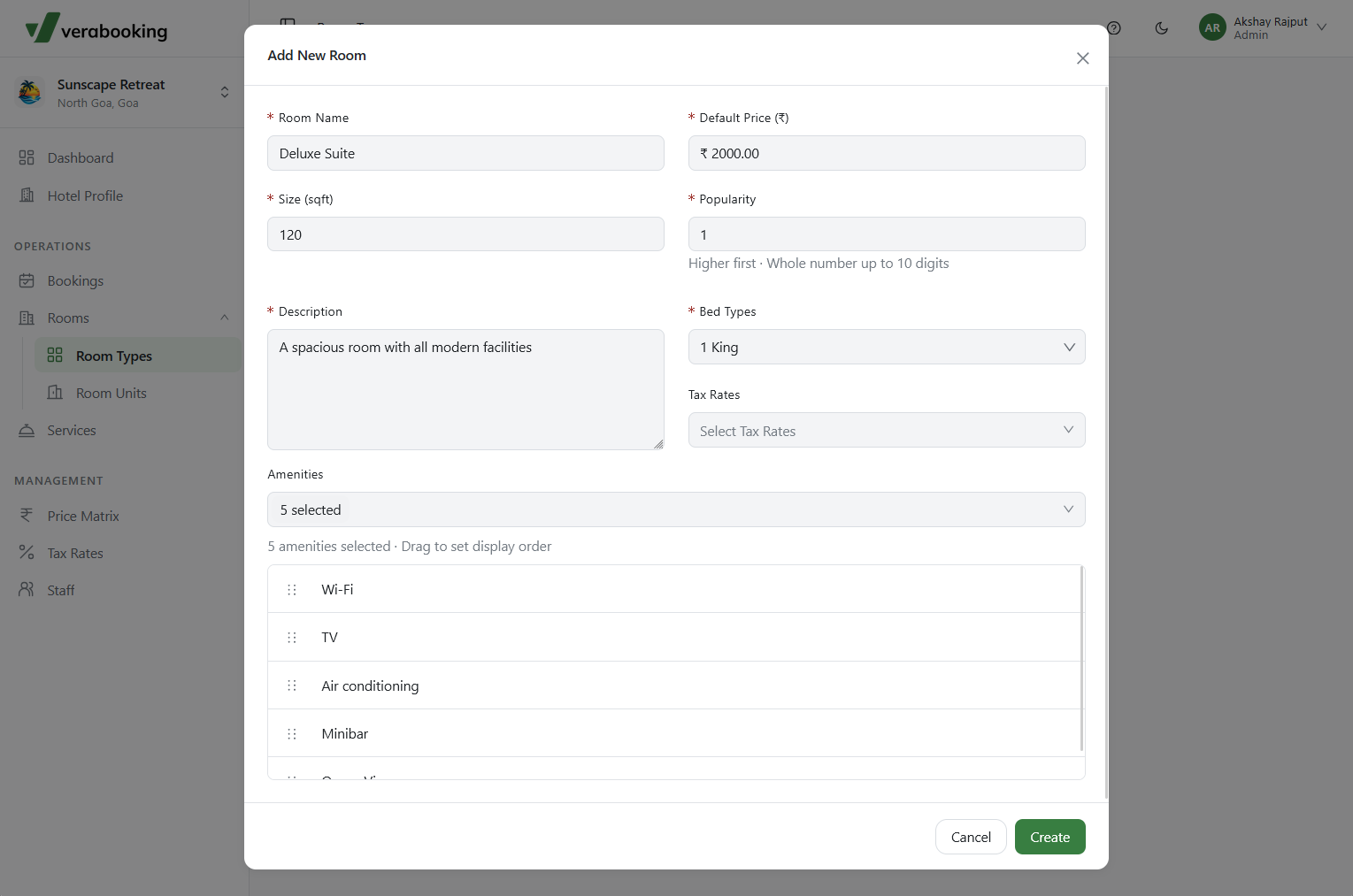
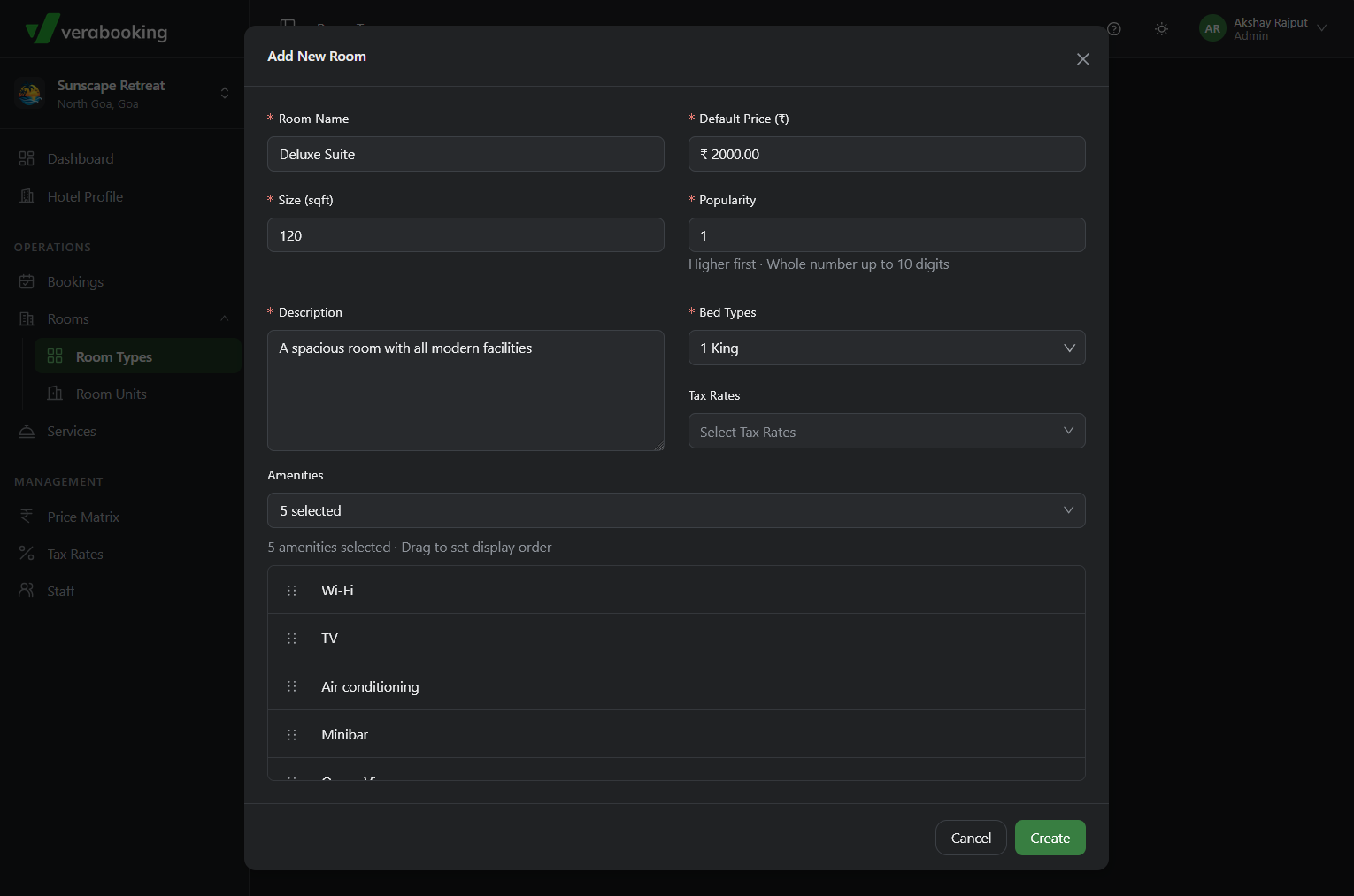
Click the Add Room Type button and fill in the required fields.
-
Click Create to save the room type.
-
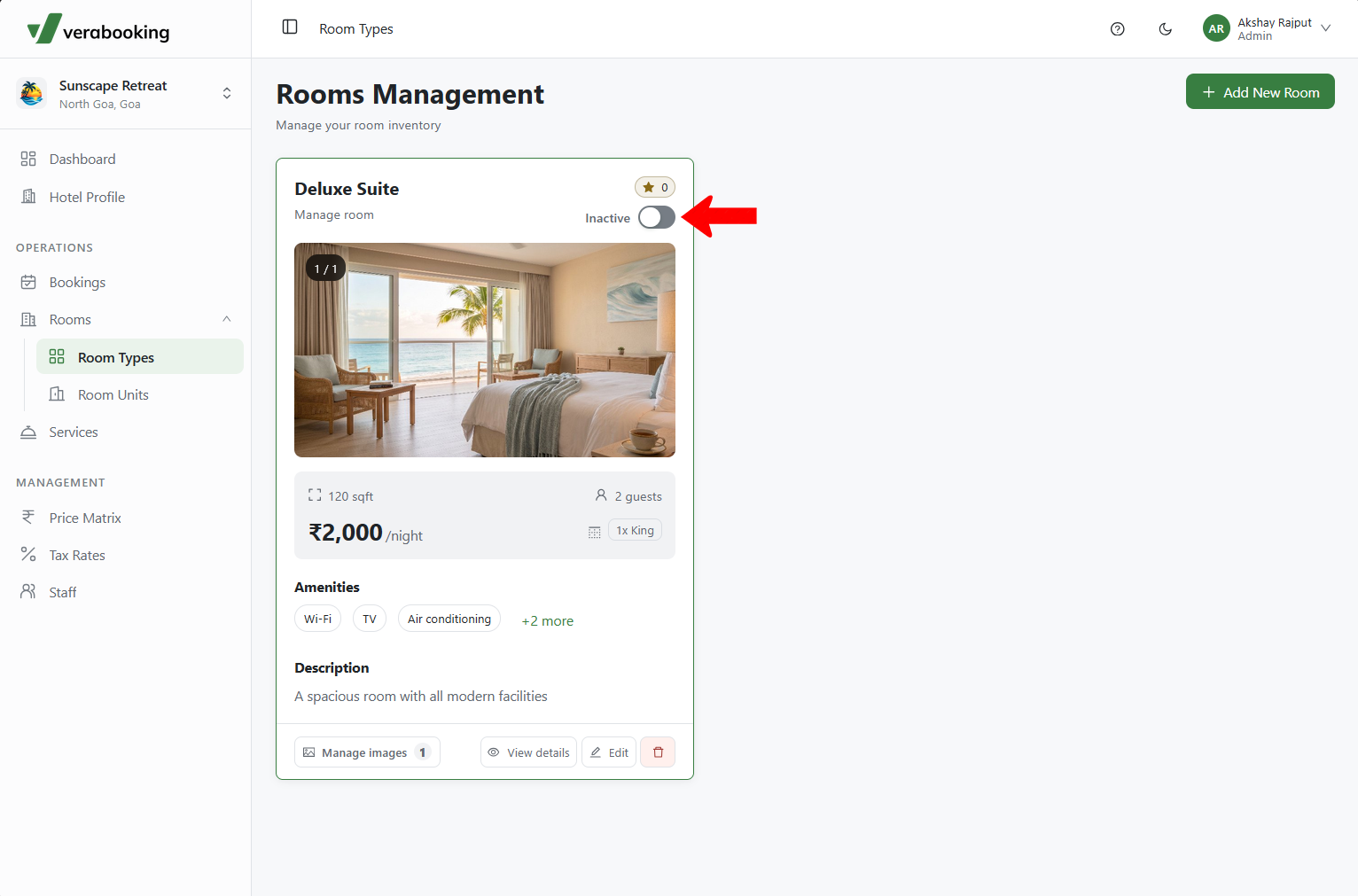
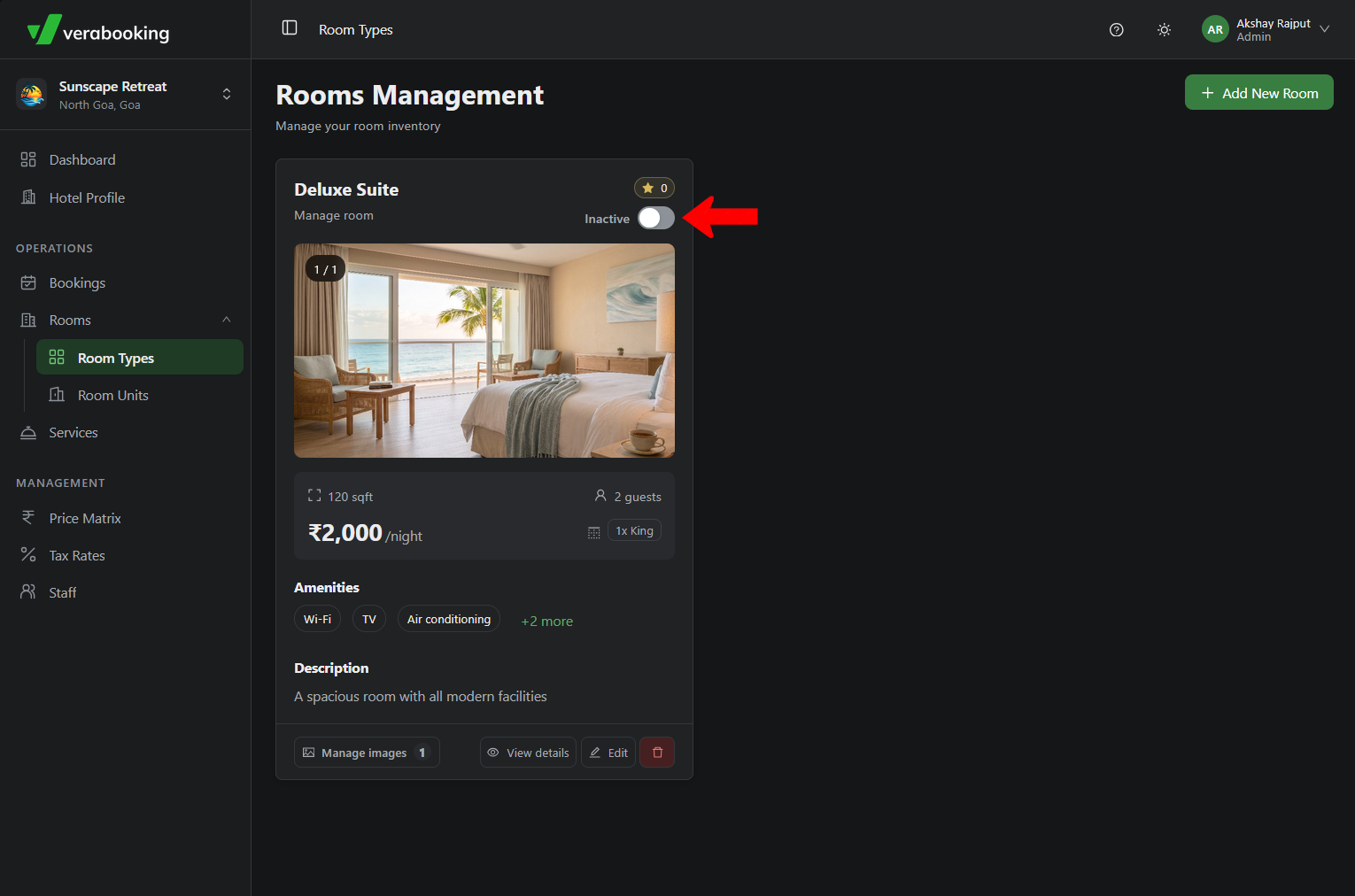
Select Manage Images to upload high-quality photos showcasing this specific room type.
-
Finally, toggle the room type to Active to ensure it is available for guests to book.
6. Add Room Units
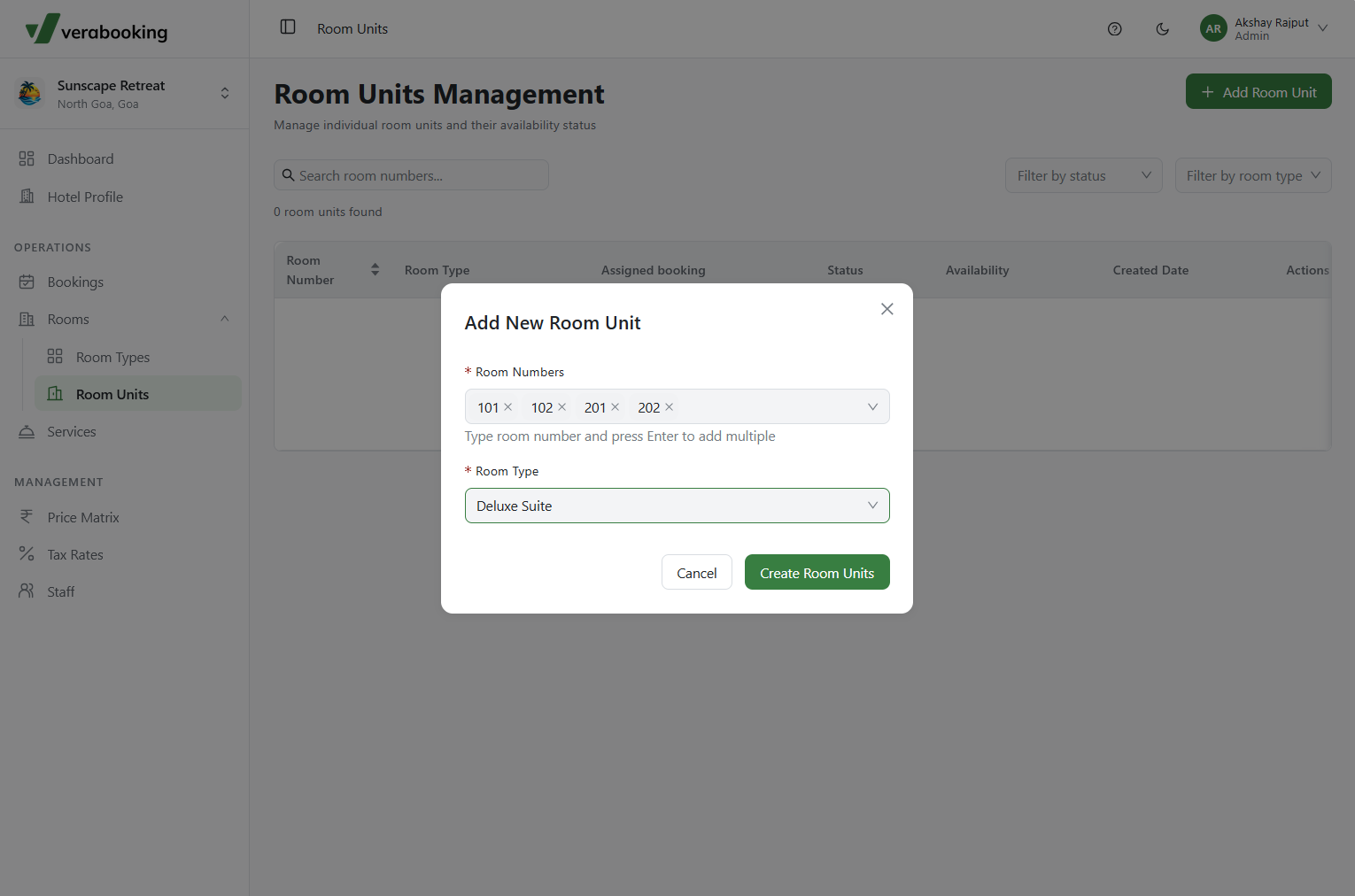
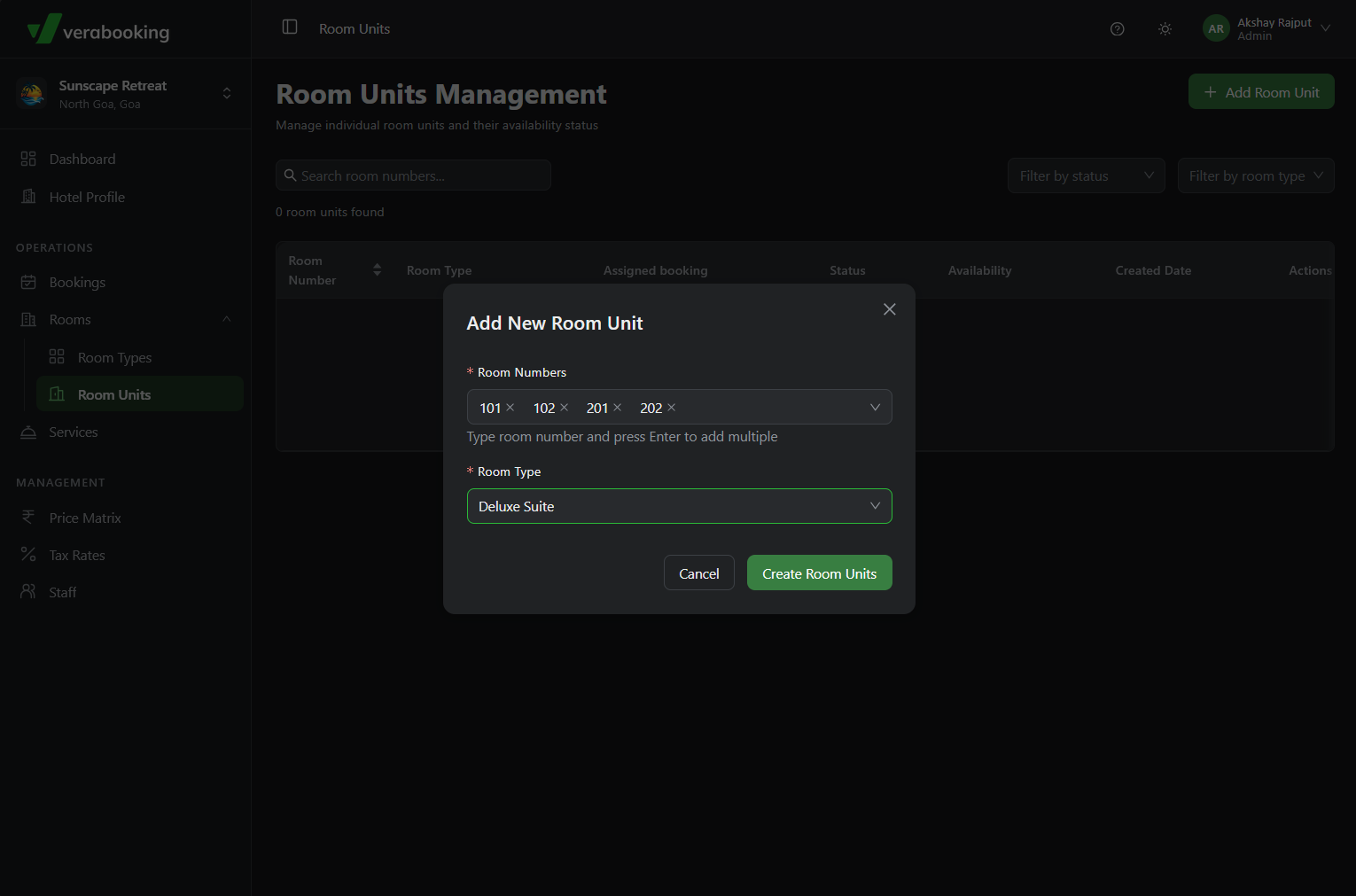
After creating a Room Type, you need to add the physical room units (inventory) associated with it.
-
Navigate to the Rooms > Room Units section and click Add Room Unit.
7. Enable Bookings
Your hotel is now ready to receive guests!
-
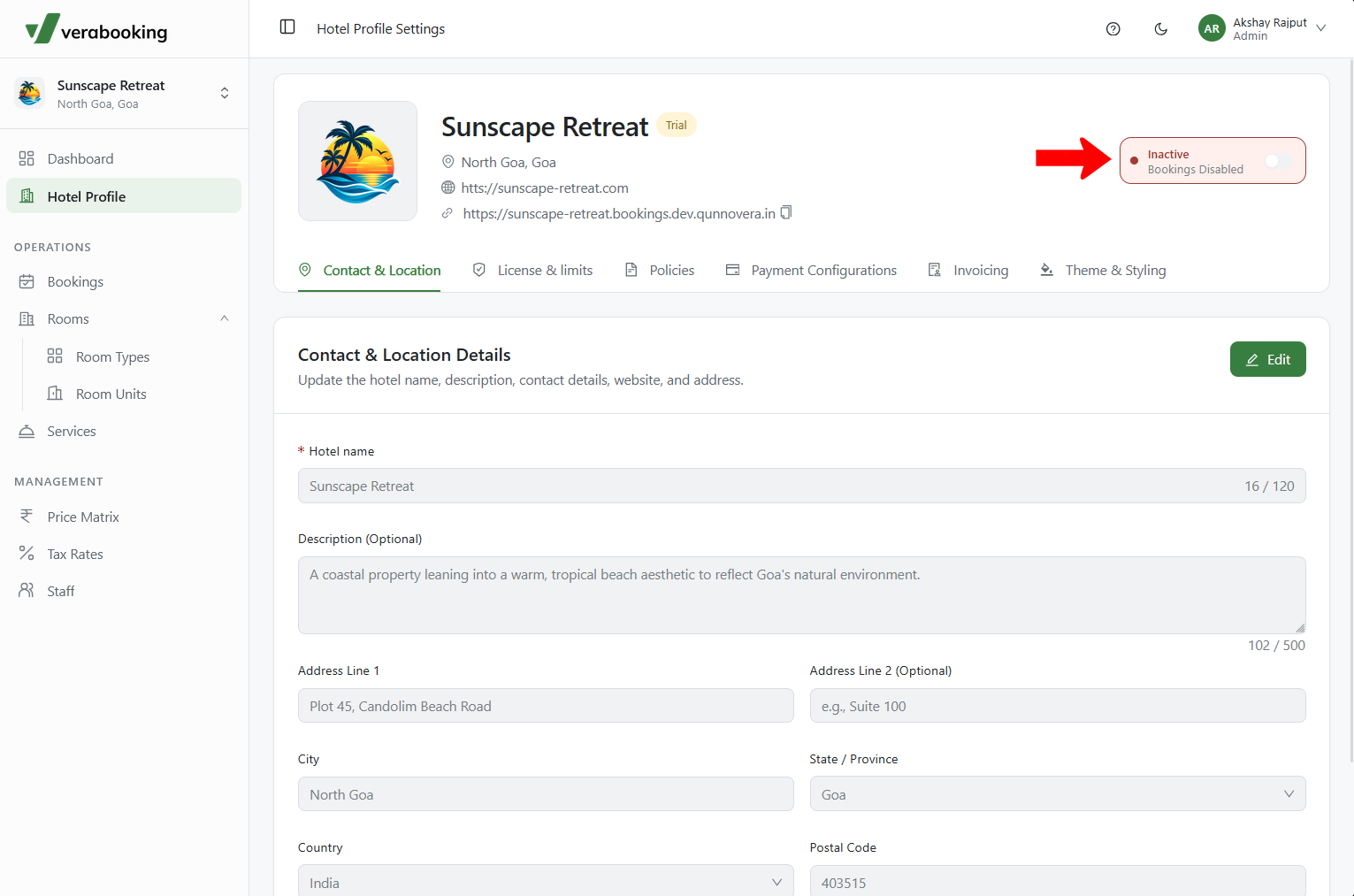
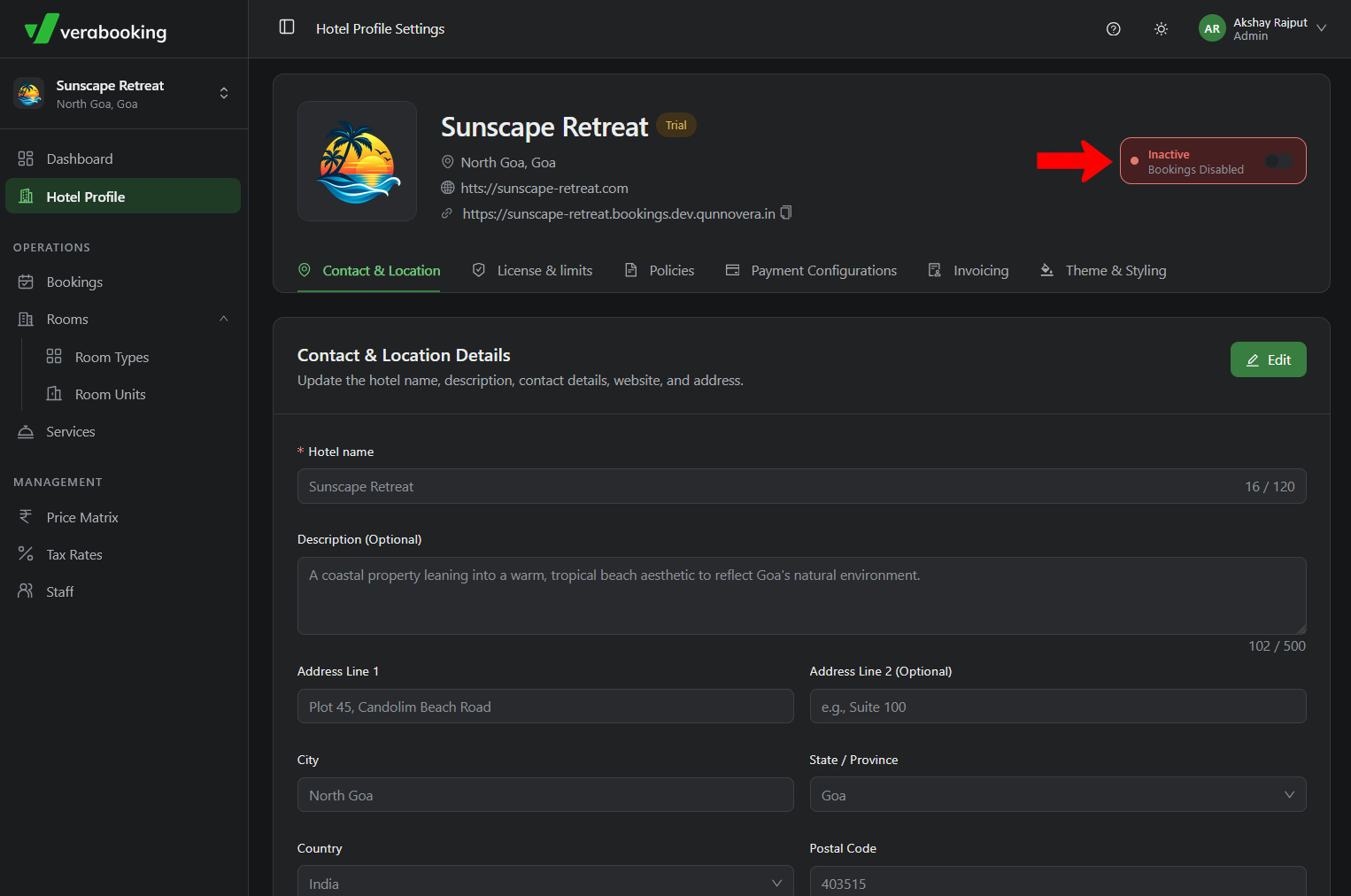
To take your booking engine live, return to the Hotel Profile tab and enable bookings.
-
By default, the booking engine is inactive, ensuring your site only becomes public once you are fully prepared.